|
<< Click to Display Table of Contents >> Terms and Definitions |
  
|
|
<< Click to Display Table of Contents >> Terms and Definitions |
|
Table of Contents:
C: Coincidence Factor (CF), Command
D: Database, Data Library, Dialog Box, Diversity Factor (DF)
E: Elements
I: Intermediate Voltage (IV), Intermediate Voltage Distribution
L: Load Factor (LF), Loss Load Factor (LLF), Low Voltage (LV)
M: Main Menu, Maximum Demand (MD), Medium Voltage (MV)
N: Network
P: Power Factor (PF), Pull-Down Menu
S: Speed Button, Speed Menu, SWER
Is an AC voltage exceeding 1,000 V rms. between conductors, up to and including 44 kV (SABS 1019). |
A distribution system operating at a nominal AC voltage of 1,9 kV phase-to-neutral, or 3,3 kV phase-to-phase. |
Single Wire Earth Return. A single phase system with no neutral conductor. SWER lines can be supplied via an isolating transformer or directly from an existing line. |
The highest averaged electrical demand for a specified period. (Typically 5-60 minutes. 30 minutes is normally used as this is close to the thermal constant of transformers and lines). |
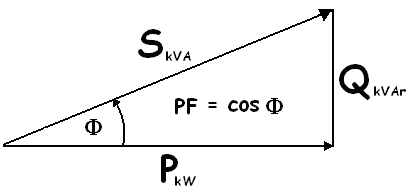
Is the real active power in kW divided by the apparent power in kVA i.e. See Also : Leading & Lagging Power Factors
|
Is a way to describe Diversity and is equal to the inverse of the Diversity Factor. The CF is always between 0 and 1, except for one customer when it is equal to 1. |
Is the sum of the non-Simultaneous(Individual) Maximum Demands of a number of loads divided by the Simultaneous Maximum Demand.
The DF is always greater that 1, except for one customer when it is equal to 1. |
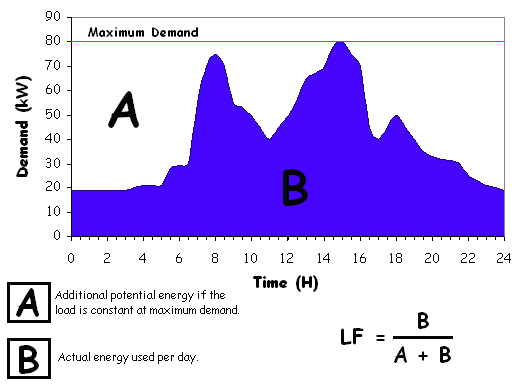
Is the actual energy supplied (in kWh) over a period divided by the Maximum Demand in kW over that period multiplied by the time period selected (i.e. actual energy supplied divided by potential energy supplied). It is always less or equal to unity. , where PF is the Power Factor
|
In essence the same as LF but with slightly more peak due to the Losses = I2R relationship where the current is squared. In PowaMaster the LLF is a function of LF and fixed at: |
This is the second line on the screen, and it contains PowaMaster's pull-down menus. These menus contain the commands you use to run all of the features and functions of PowaMaster. Available pull-down menus are: File, Search, Node, Calculate, Tools, Network and Help. |
Accessing a pull-down menu will display a list of available commands. When a command is selected, one of three things will happen: •The command will execute •Another menu will appear •A "Dialog box" will appear. |
This is an instruction for PowaMaster to execute an action. For example, accessing File/Save will save the current project. |
A toolbar contains speed buttons that allow one to execute a command without having to access it via the Main Menu. Execute the command by clicking on the relevant speed button. The Toolbars may be located either at the top or at the left of PowaMaster's screen. |
This is located on the left hand side of the PowaMaster screen and contains various speed buttons. Clicking on these buttons will cause PowaMaster to execute certain actions. |
These buttons represent common PowaMaster actions. To execute the action, simply click on the appropriate button. A description of the action (Hint) associated with the button will be displayed if the mouse pointer is positioned over the button. |
This comprises a collection of sources, loads and other elements connected together to form an electrical network. |
When PowaMaster is first started, some default data is automatically loaded for transformers, voltages, conductors, etc. This data can be altered and new network components can be added. The data library is located under the Main Menu / File / Data . Note: The data library should always be verified before use (DISCLAIMER) |
Dialog Box or Form are synonymous. These boxes / forms will appear after certain commands are selected. The user is required to enter or modify information before PowaMaster will continue. |
A Database is any organised collection of information, for example, a telephone directory is a database of names, addresses and telephone numbers. |
Some dialog boxes will be presented with a window which includes tabs (Similar to tabs in a filing system). Each tab will have a description. Clicking on a tab will bring the required sheet to the foreground. This sheet will contain information associated with the tab. The user may now either enter or alter information on the sheet. |