|
<< Click to Display Table of Contents >> Results and ReportingPrinting User Report Options |
  
|
|
<< Click to Display Table of Contents >> Results and ReportingPrinting User Report Options |
|
TO DO:
Add user report description
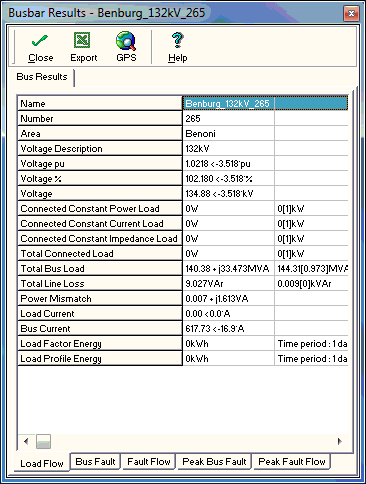
Besides viewing the results of elements on the "canvas" by specifying the parameters of each element to be viewed, the User can select to view the results of each element. This is performed by moving the mouse cursor over an element and Right-Clicking selecting the Results menu. This displays a results window for the User. Note that a results window for each different type of element can be displayed simultaneously. Also results windows can remain open when the network is being manipulated or calculations are being performed. This allows the User to perform various scenario checking without closing and re-opening the results window.
The results windows for each element type contains a Results tab-sheet for displaying load flow and fault calculation results. Tab-sheets detailing results for Load Profile Calculations and Motor Start-Up calculations appear on the element's results form only when a corresponding calculation has been performed.
A results window that contains a graph of results will also have an 'Expand' option on its toolbar. This will open a separate window with information pertaining only to the graph, where the user can change the title and toggle the colour between the default Windows colour and white. Right clicking the graph allows the user to copy it and paste it into an external programme such as MS Word or MS Excel.
Should the relevant element have GPS co-ordinates entered, clicking the GPS button opens the default web browser in Google Maps with the location marked.
The Results Tab-sheet contains tab-sheets that detail:
•Load Flow
•Fault Levels at the Element
•Fault flow as a result of a fault placed in the network.
Note: The Load Flow, Fault and Fault Flow results will be default to 0 if no load flow or fault calculation has been performed.
All results can be exported to Excel by clicking the Export button.